![200707 pencil-logo-white-green-white_background-square.png]](https://support.pencilpay.com/hs-fs/hubfs/200707%20pencil-logo-white-green-white_background-square.png?width=150&height=53&name=200707%20pencil-logo-white-green-white_background-square.png)
Steps to Update the Account Application Header
1. Navigate to Credit Form Design Settings
-
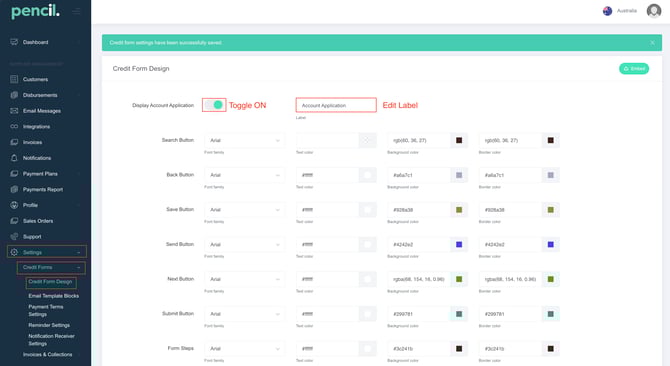
Go to Settings
-
Select Credit Forms
-
Click on Credit Form Design
2. Configure the Account Application Display
Once in the Credit Form Design section, you have two options:
Show or Hide the Account Application
-
Toggle ON - Displays the Account Application header in your credit form
-
Toggle OFF - Hides the Account Application header from your credit form
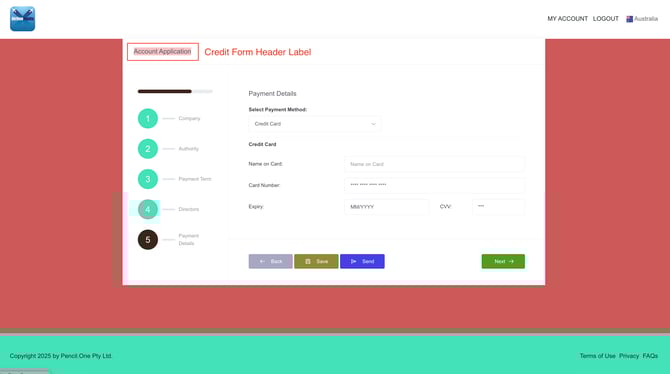
Edit the Label Text
If you want to customize the text that appears in the header:
-
Locate the Account Application section
-
Click on Edit Label
-
Enter your desired custom text
-
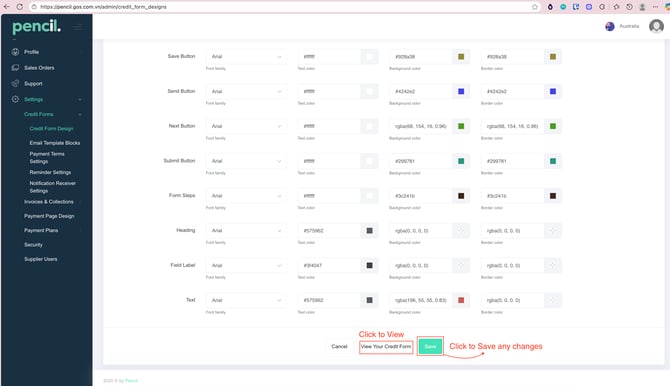
Save your changes
Additional Notes
-
Changes to the Account Application header will apply to all credit forms using this design template
-
Make sure to save your changes before navigating away from the page
-
Preview your credit form to ensure the header displays as expected
Need Help?
If you have any questions or need further assistance Reply directly in your support inbox or contact PencilPay Support for detailed guidance or you can book a Zoom meeting with Pencil Support in the calendar below for personalized help.