![200707 pencil-logo-white-green-white_background-square.png]](https://support.pencilpay.com/hs-fs/hubfs/200707%20pencil-logo-white-green-white_background-square.png?width=150&height=53&name=200707%20pencil-logo-white-green-white_background-square.png)
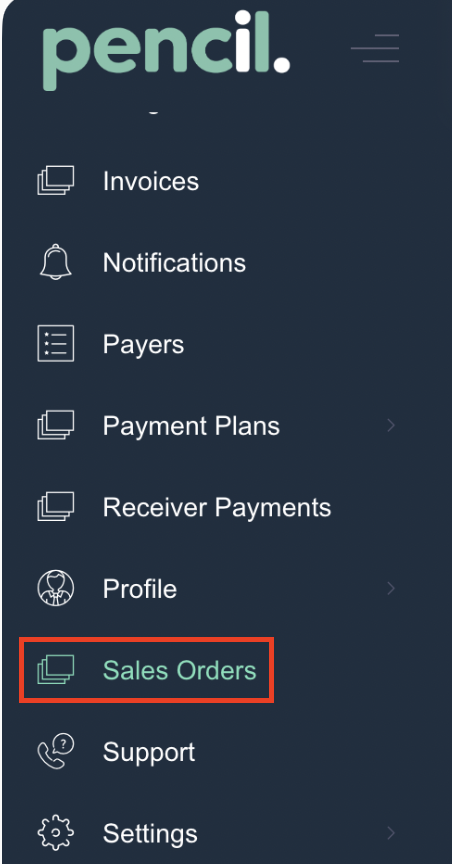
- Go to Sales Orders and find one of the overdue Quote/Sales Order/Invoice for this customer.
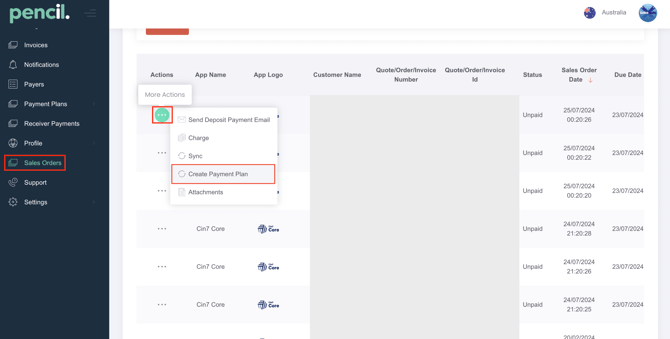
- Under "Actions (...) click on the "Create a Payment Plan" option
- The Quote/Sale Order/Invoice will be selected in the popup and if you want to include more than one invoice in the payment plan you can toggle on "Add more invoices?" and select all invoices you want to include in the payment plan.
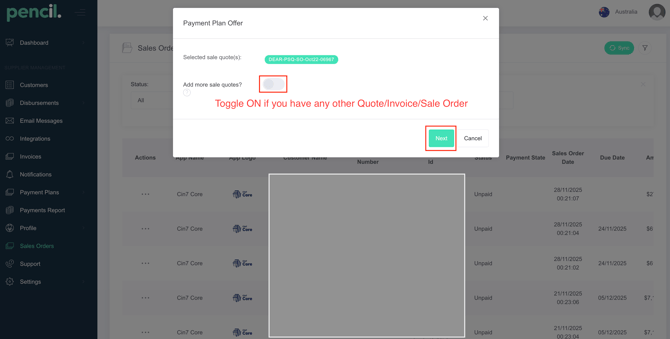
For Creating a payment plan with an invoice,the pop-up will show the option to add more invoices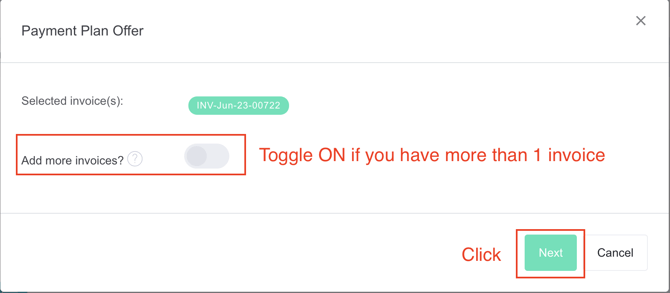
For Creating a payment plan with a sale order, the pop-up will show the option to add more sale orders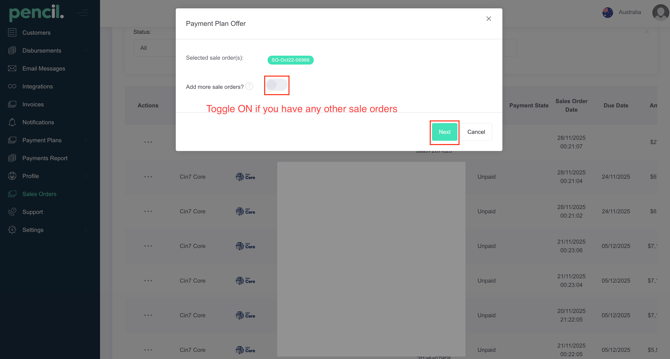
- Click on Next to continue to the next step.
- In the next step you need to complete the following:
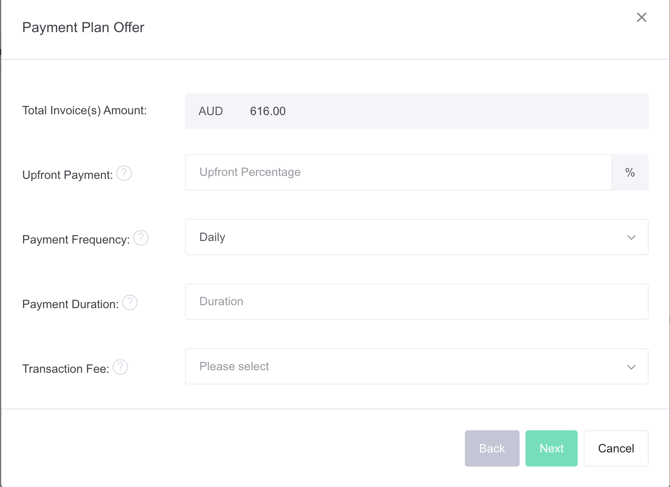
- For Upfront Payment, enter what the minimum percentage you wish to collect to start the payment plan. The minimum amount is $5.
- Select the "Payment Frequency" from the options: Daily, Weekly or Monthly.
- Select the "Payment Duration"; which is how many days, weeks or months you wish to run the payment plan for. *Minimum recurring payment is $5.
- For "Transaction Fee", you can select if you "On-Charge" or "Absorb" the transaction fee to your customer.
- If the customer isn't signed up, you can toggle "Customer Registration Required?" ON and the system will ask the customer to sign up after they make the first payment.
- Click Next.
- If the customer hasn't signed up, you can send the customer an email (you can edit the content first) and click on "Submit" to send.
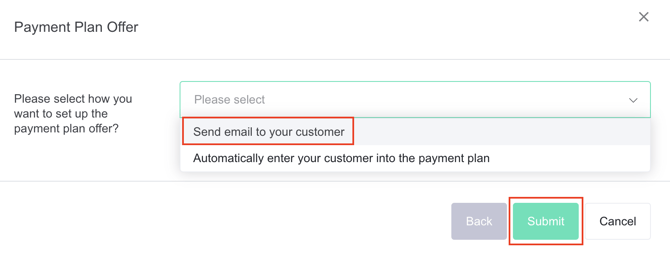
- The customer will receive an email notification and they can review and complete their payment plan.
After you have set up your payment plan, if the customer's circumstances change and they request to either put the next payment back some days or weeks, they pay by bank transfer and the payment plan needs be completed or they want to pay a larger amount in the next payment; you now have all of these options.
You can go to Payment Plans → Payment Plans → Search for the customer → Select the Payment Plan you wish to make changes to: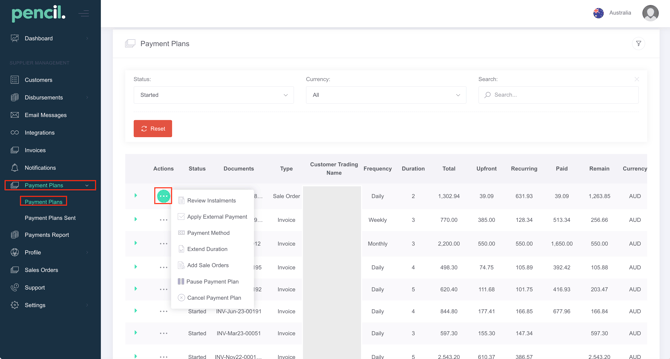
To make changes to an existing payment plan follow these steps:
- Go to Payment Plans.
- For any Active payment plans you will see three (3) icons:
- Review Instalments
- Click on this icon to review the previous payments, the next payment, change the next payment date or change the next payment amount.
- Apply External Payment
- If the customer has paid you directly via bank transfer or any other amount you can enter the amount paid and if paid in full this will close the payment plan. If only a partial payment is made then the remaining payments will update automatically.
- Payment Method
- This controls how the customer will be charged for the payment plan (for example, via saved credit card, bank account, or another supported method). Changing the payment method updates the instrument PencilPay uses to automatically collect each installment, without changing the schedule or amounts.
- Extend Duration
- Extend Duration lets you lengthen the time over which the remaining balance is collected. It effectively spreads the remaining installments over more days, weeks, or months, which usually lowers each individual installment amount while keeping the overall total the same
- Add Sale Orders
- Add Sale Orders allows you to attach additional quotes, orders, or invoices to an existing payment plan so they are included in future scheduled payments. This lets you consolidate multiple sales documents into one ongoing plan instead of creating separate payment plans for each new order
- Pause Payment Plan
- Pause Payment Plan temporarily stops future scheduled charges on a payment plan without cancelling it. While paused, no new installments are collected until the plan is resumed, which is useful when a customer needs a short payment break but will continue the plan later.
- Cancel
- If you want to stop the payment plan, click on Cancel. If any of the invoices in the payment plan are still not fully paid; they will return to overdue status with the already paid payments applied to the Quote/Sale Order/Invoice and show the amount the is still outstanding for each invoice.
- Review Instalments
Need Help?
If you have any questions or need further assistance, you can book a Zoom meeting with Pencil Support in the calendar below for personalized help. Our team is available to ensure your payment syncing and automation remain seamless.