![200707 pencil-logo-white-green-white_background-square.png]](https://support.pencilpay.com/hs-fs/hubfs/200707%20pencil-logo-white-green-white_background-square.png?width=150&height=53&name=200707%20pencil-logo-white-green-white_background-square.png)
How to access the Review Duplicates tool
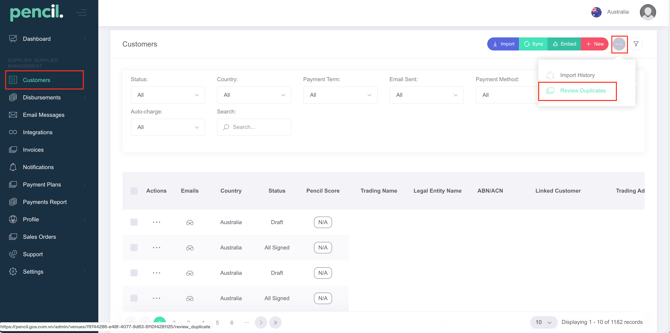
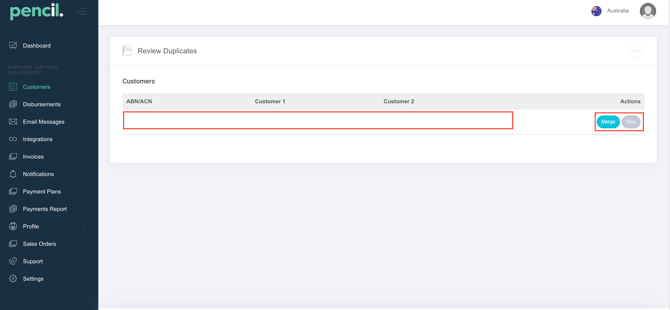
In Pencil, go to Customers → On the upper-right hand corner of the page, click on the three dots (...) → Review Duplicates → You will find the option to "Merge" or "Skip" the customer records
To Merge Duplicate Customers
Go to Customers → On the upper-right hand corner of the page, click on the three dots (...) → Review Duplicates → Click on"Merge" → the "Merge Credit Form" screen will pop-up where you will be able to review the Main Credit Form and the Secondary Credit Form. → Click on "Confirm"
-
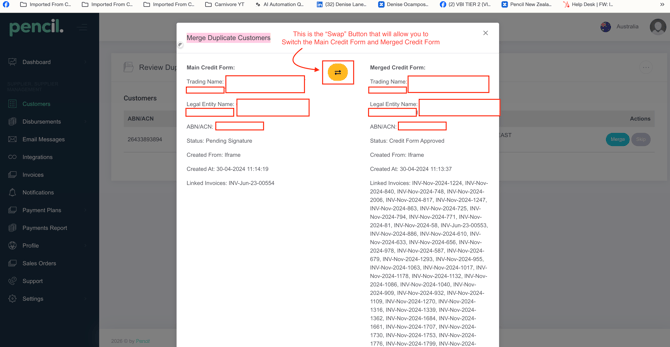
The Merge Credit Form pop-up will appear, showing:
-
The Main Credit Form
-
The Secondary Credit Form
-
-
Review the details of both records to confirm they are the same customer.
-
If needed, click Swap Main Credit Form to switch which record will be kept as the main one.
-
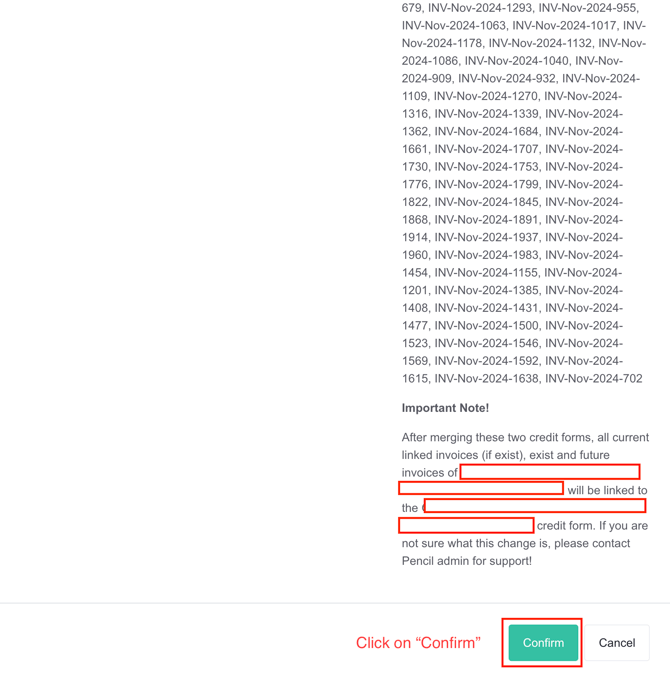
Once you are satisfied with the selection, click Confirm at the bottom of the pop-up to complete the merge.
After the merge:
-
The Secondary Credit Form will be marked as Inactive in the system.
-
The Main Credit Form will be retained and used going forward in PencilPay.
There is also a button called the "Swap Main Credit Form" button which will allow you to Switch the Main Credit Form from the Secondary Credit Form you wish to Merge.
What happens after the merge is the Secondary Credit Form will be marked as Inactive in the system after the merge and the Main Credit Form will be retained in Pencil.
Using the “Swap Main Credit Form” button
The Swap Main Credit Form button lets you choose which of the two records should become the main customer.
Use this when:
-
The Secondary Credit Form has the most up-to-date information, or
-
You want to keep a specific application history, limits, or contact details as the primary record.
Click Swap Main Credit Form, verify the new Main and Secondary assignments in the pop-up, then click Confirm to finalize and merge.
Important notes
-
Always double-check the customer name, ABN, and contact details before merging.
-
Once merged, the Secondary record is set to Inactive and should no longer be used for new transactions.
-
If you are unsure which record to keep, take a screenshot or note the details before merging so you can share them with your team or Support if needed.
The Swap Main Credit Form button will allow you to Switch the Main Credit Form from the Secondary Credit Form you wish to Merge. See screenshot below:
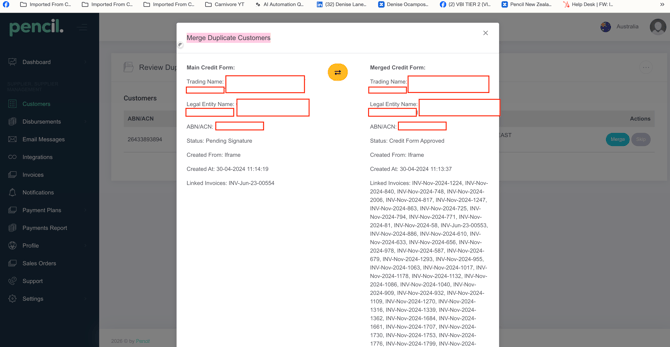
Do not forget to click on "Confirm" at the bottom of the pop-up screen to finish merging the two customers.
For more information about how to merge customers,
How to Merge Duplicate Customers in PencilPay
How to link or merge one approved credit form to multiple ABNs/EINs or stores?
Need Help?
If you have any questions or need further assistance, you can book a Zoom meeting with Pencil Support in the calendar below for personalized help. Our team is available to ensure your payment syncing and automation remain seamless.