![200707 pencil-logo-white-green-white_background-square.png]](https://support.pencilpay.com/hs-fs/hubfs/200707%20pencil-logo-white-green-white_background-square.png?width=150&height=53&name=200707%20pencil-logo-white-green-white_background-square.png)
This is the part that's easy to get wrong, because the fix depends on where you undo it.
Path A — Undoing from Account Transactions ("Remove and Redo")Use this when the entry was a journal-type entry pushed from Pencil (not a straightforward bank statement line).
- Go to Account Transactions.
- Click Search and filter by amount, date, or status to find the incorrectly reconciled item.
- Tick the checkbox for that specific transaction (not just any line).
- Click Remove and Redo.
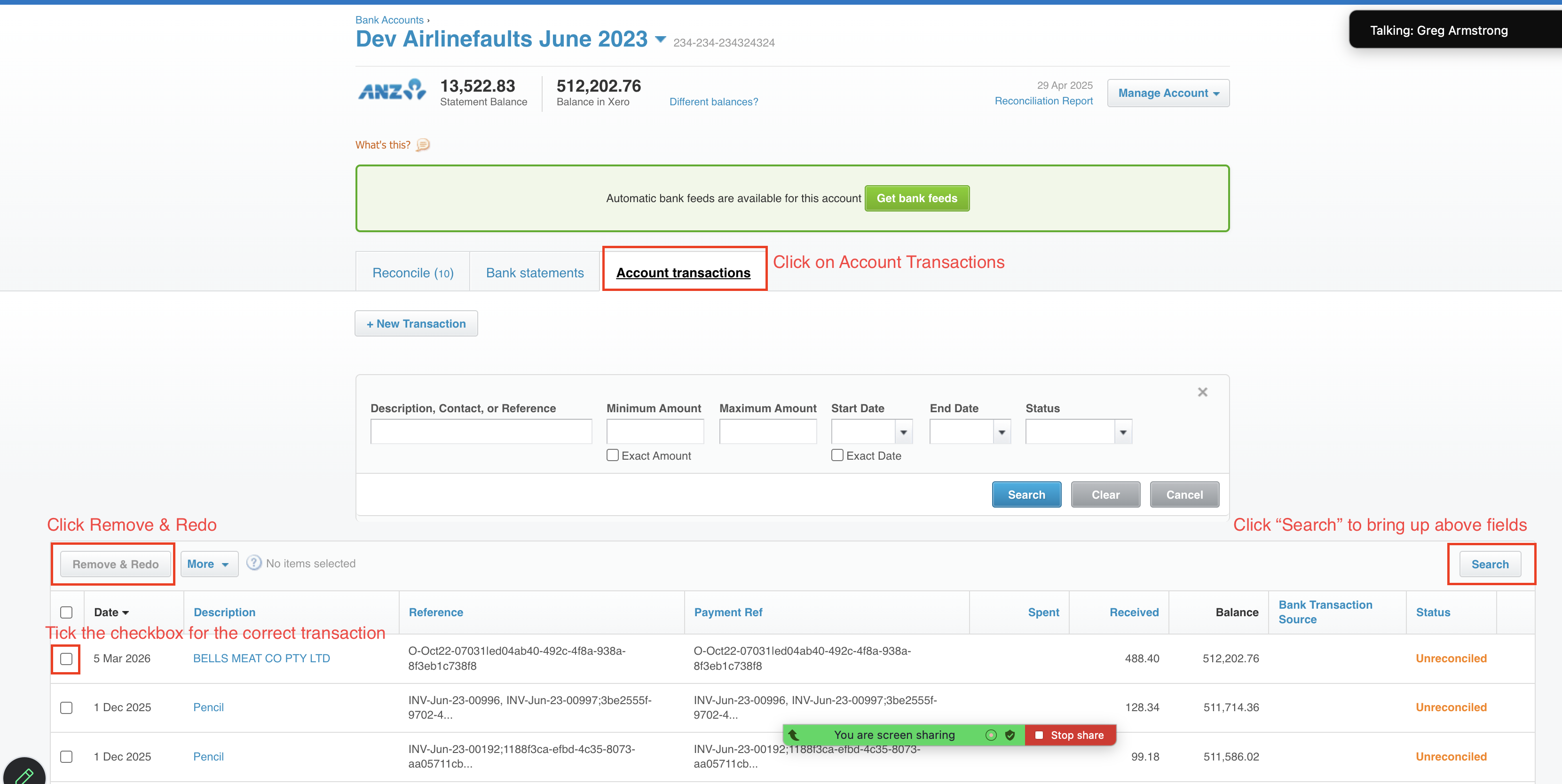
- The item now drops back into the Reconcile queue (you'll see the "to reconcile" count go up by one).
Show Image
⚠️ Critical extra step: Removing and redoing from Account Transactions does not automatically re-link back to Pencil. After doing this, you'll also need to:
- Go to Pencil Admin → Disbursements, find that same disbursement, and click Resync.
- Only after the resync will it correctly reappear and be ready to reconcile/match again in Xero.
Use this when you're undoing the reconciliation from the bank statement line itself.
- Go to Bank Statements.
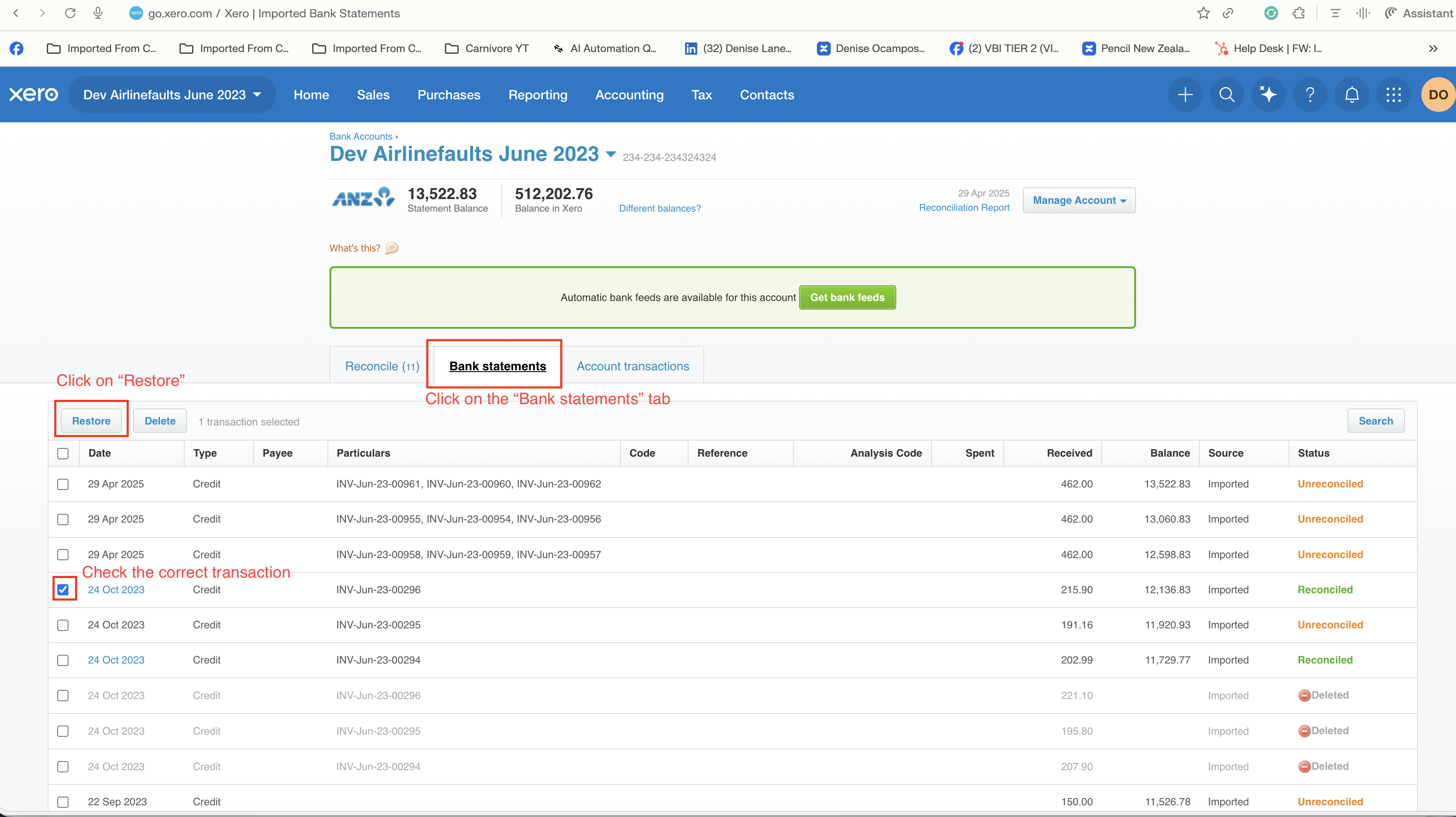
- Tick the checkbox next to the reconciled transaction.
- Click Restore.
- Go back to Reconcile — the auto-reconciliation suggestion will reappear on its own.
✅ No separate Pencil resync needed in this path — restoring from Bank Statements keeps the link intact and Xero's auto-match picks it back up.
Summary rule of thumb| Where you undo it | What happens | Extra step required? |
|---|---|---|
| Account Transactions → Remove and Redo | Breaks the link back to Pencil's disbursement | Yes — resync the disbursement in Pencil Admin |
| Bank Statements → Restore | Keeps the link intact | No — auto-reconcile reappears in Xero automatically |
- Why Did My Transactions Stop Auto-Reconciling?
- Transaction Not Auto-Matching in Xero