![200707 pencil-logo-white-green-white_background-square.png]](https://support.pencilpay.com/hs-fs/hubfs/200707%20pencil-logo-white-green-white_background-square.png?width=150&height=53&name=200707%20pencil-logo-white-green-white_background-square.png)
-
Install latest Pencil customisation package for MYOB Acumatica
-
Download latest customisation package
-
Login to Pencil as supplier
-
Download customisation package file URL: https://app.pencilpay.com/integrations/myob/myob_advanced/download_package_file
-
-
Import customisation package to MYOB Acumatica account:
-
Login to MYOB Acumatica using full access user account
-
Go to
Customisation→Publish Customisation -
Click
IMPORTbutton →Choose File→ Select the customisation package file downloaded at step 1.a.ii → ClickUPLOAD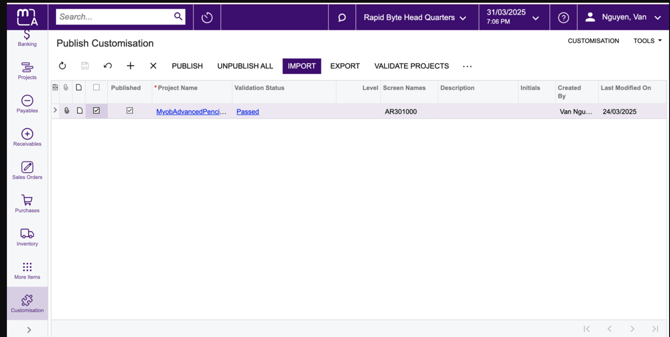
-
Publish the latest customisation
-
Click on the project name of the newly uploaded customisation at step 1.b.iii
-
Click
Publishbutton → Click onPublish Current Projectaction.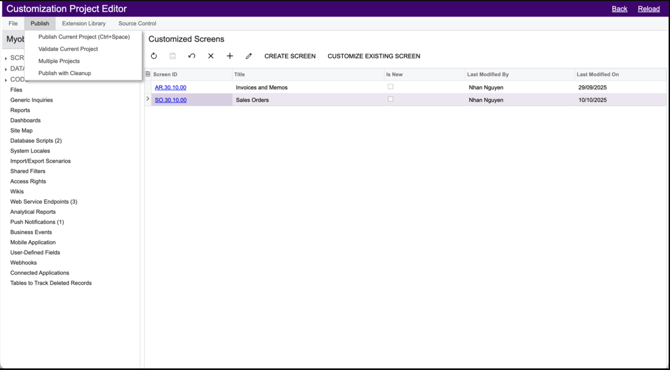
-
-
-
-
Update Sale Order report so643000
-
Download and install Acumatica Report Designer
-
Add Pencil payment link to Sales Invoice report - so643000
-
Open Acumatica Report Designer
-
Click
File→Open From Server-
Fill in the required information:
-
Web service URL
-
Login user details with Report Designer role
-
-
Click
Load reports listbutton -
Select so643000 report
-
Click
OKbutton
-
-
Add controls for Pencil payment link which can be added to the report as a button, a link or a QR code:
-
Pay with PencilPaybutton (recommended):-
Download
pay_with_pencilpay.pngfile: [URL will be updated soon]
-
On the
Propertiestab of the Properties pane, select thereport1 Reportobject from the drop-down list to select the report form, and do the following:-
In the
Data > EmbeddedImagesproperty, click the More button to open theEmbedded Imagesdialog box. -
In the dialog box, click the
New image ...button, select thepay_with_pencilpay.pngfile. -
Click
OKbutton to close theEmbedded Imagesdialog box.
-
-
Add a
TextBoxcontrol to the position you want to show thePay with PencilPaybutton. -
Properties:
-
Appearance → Value:
<Empty> -
Appearance → Style → BackImage → Source:
Embedded -
Appearance → Style → BackImage → Image:
pay_with_pencilpay -
Behavior → NavigateUrl:
=[ARInvoice.UsrPpSoPencilPaymentLinkUrl] -
Behavior → Target:
_blank -
Behavior → Visible:
False -
Behavior → VisibleExpr:
=[ARInvoice.UsrPpSoPencilPaymentLinkUrl] <> null -
Layout → Size (optional):
160px, 29px
-
-
-
QR code:
-
Add a
PictureBoxcontrol to the position you want to show the QR code for Pencil payment link on the report. -
Data → Source:
Barcode -
Data → BarcodeType:
QRCode -
Data → Value:
=[ARInvoice.UsrPpSoPencilPaymentLinkUrl] -
Behavior → QRCodeSettings → CodeSize:
64 -
Behavior → Visible:
False -
Behavior → VisibleExpr:
=[ARInvoice.UsrPpSoPencilPaymentLinkUrl] <> null -
Layout → Size:
64px, 64px
-
-
Pay with PencilPaylink:-
Add a
TextBoxcontrol to the position you want to show thePay with PencilPaylink. -
Properties:
-
Appearance → Value:
Pay with PencilPay -
Appearance → Font (optional):
Arial; 12px; -
Appearance → TextAlign (optional):
Center -
Appearance → VerticalAlign (optional):
Top -
Behavior → NavigateUrl:
=[ARInvoice.UsrPpSoPencilPaymentLinkUrl] -
Behavior → Target:
_blank -
Behavior → Visible:
False -
Behavior → VisibleExpr:
=[ARInvoice.UsrPpSoPencilPaymentLinkUrl] <> null -
Layout → Size (optional):
128px, 16px
-
-
-
-
Click
File→Save To Server-
Fill in required information
-
Web service URL
-
Login user details with Report Designer role
-
-
Click
OKbutton
-
-
Test
-
Login to MYOB Acumatica
-
Go to
Sales Invoices -
Create and release a new Sales Invoice
-
Open the newly created Sales Invoice
-
Select
FINANCIALtab -
The
Pencil Payment Linkinput is located underPENCILPAYsection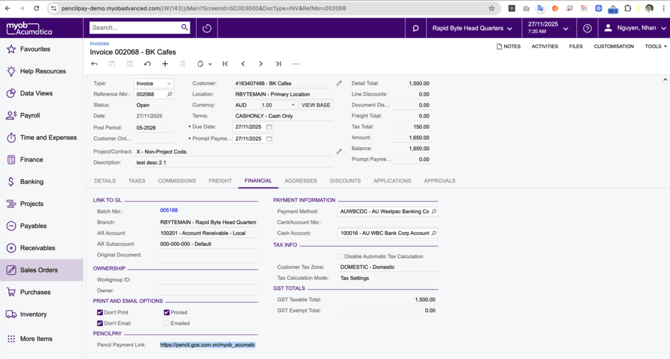
-
-
Click
Print Invoiceaction (in more actions...) to open so643000 screen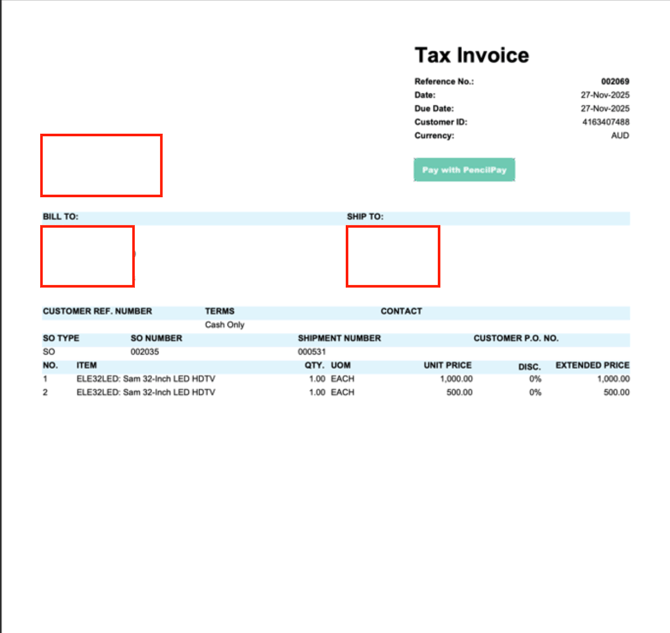
-
Click on Pencil Payment Link (
Pay with PencilPay) added at step 2.b.iii
-
-
-
-
Update Sales Invoice email template
Sales Invoices-
Login to MYOB Acumatica account
-
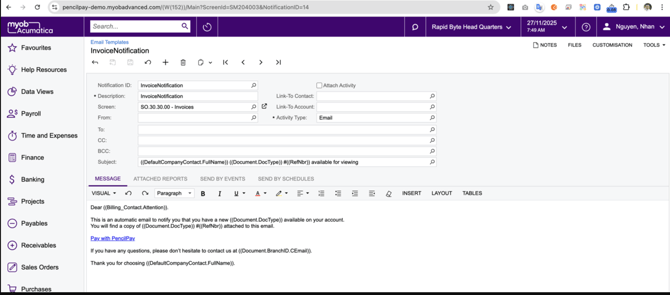
Go to
Email Templates- Screen ID SM204003 -
Find and open
Sales Invoicestemplate related to Sales Invoice-
Add
((UsrPpSoPencilPaymentLinkUrl))variable where you want to show the Pencil Payment Link in the email content
-
-
Click
Savebutton to save the change -
Test
-
Go to
Sales Invoices -
Select an
OpenSales Invoice -
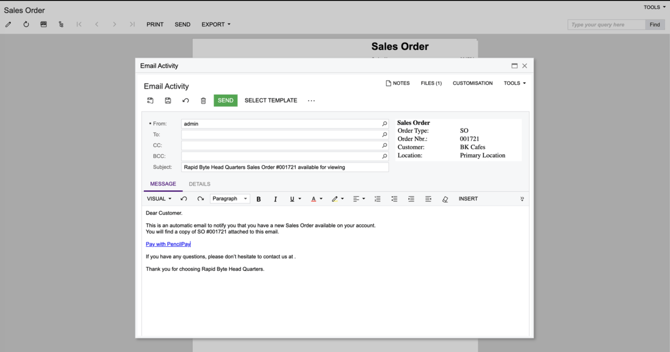
Click on
Send Emailaction (in more actions...) -
Click
SELECT TEMPLATEbutton → selectSales Invoicestemplate related Sales Invoice -
Fill in required information
-
From
-
To
-
Subject
-
-
Double check the Pencil payment link added at step 3.d is included in the email content
-
Click
SENDbutton
-
-

Need Help?
If you have any questions or need further assistance, you can book a Zoom meeting with Pencil Support in the calendar below for personalized help. Our team is available to ensure your payment syncing and automation remain seamless.