![200707 pencil-logo-white-green-white_background-square.png]](https://support.pencilpay.com/hs-fs/hubfs/200707%20pencil-logo-white-green-white_background-square.png?width=150&height=53&name=200707%20pencil-logo-white-green-white_background-square.png)
The Pencil <> Xero's bank reconciliation algorithm is self-learning: once it has learned how to match a transaction, it does so instantly and accurately going forward.
The problem: if a transaction gets manually reconciled (instead of letting Xero auto-match it, or it gets matched incorrectly), the algorithm gets "confused" and starts suggesting wrong matches for the transactions after it. This is the most common cause when things "used to work fine" and now nothing matches.
A tell-tale sign: if you notice that apart from a few transactions, the rest aren't reconciling correctly anymore — that usually means something was reconciled manually somewhere upstream, and it's worth checking using the steps below.
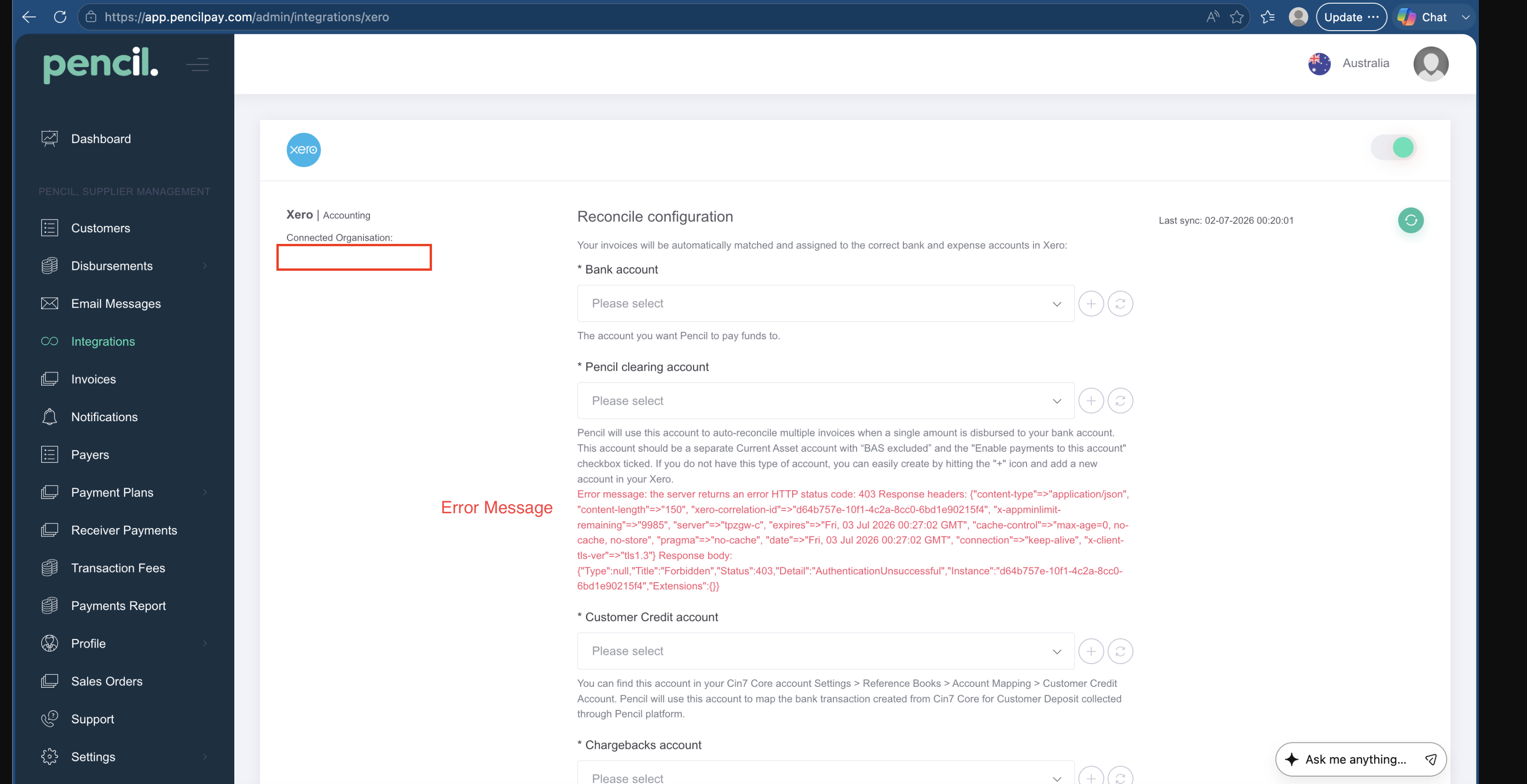
The first crucial step is to check your Xero Integration in Pencil and make sure that it is not disconnected.
This is what it looks like when your Xero Integration is disconnected in Pencil Integrations. You will see a long error message in red even if it appears to be toggled ON/connected
The second most crucial step is to check if the correct Bank account is selected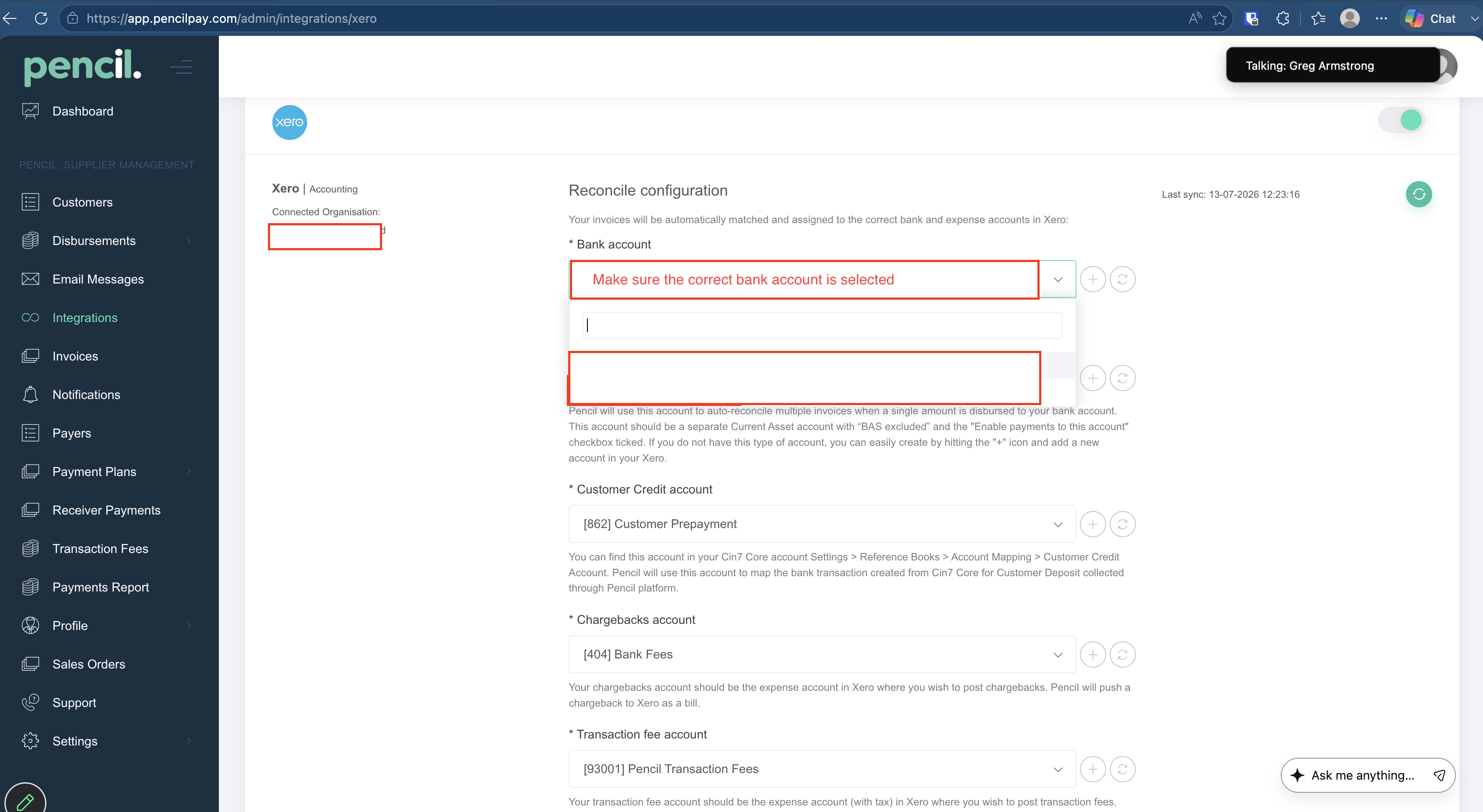
How to handle transactions that do not "Match"
Standard "Match" workflow (for an unmatched transaction)
When a transaction shows under Reconcile but doesn't auto-match:
- Go to the Reconcile tab in Xero, find the unmatched line.
- Click Match (not Create — Create generates a brand-new transaction instead of linking to the existing one).
- Click Find & Match / the search option inside the match panel.

- Search by the amount (or part of the invoice/reference number if amount search doesn't surface it).
- Tick the checkbox next to the correct matching transaction.
- The grey Reconcile button at the bottom turns green — click it.
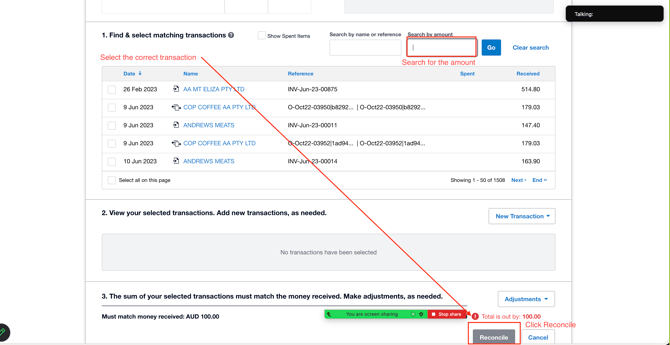
Tip: if you only see a checkbox and "OK" option but it's not turning green, double check you've actually clicked Find first — it's easy to click Match, not see an obvious match, and stop instead of using the search/find step inside the match screen.
3. When the transaction still doesn't show up in Find & Match, make sure that you are connected to the correct Bank Account in Pencil -> Integrations -> Xero -> Check the "Bank Account" selected, then compare it with what is showing in Xero
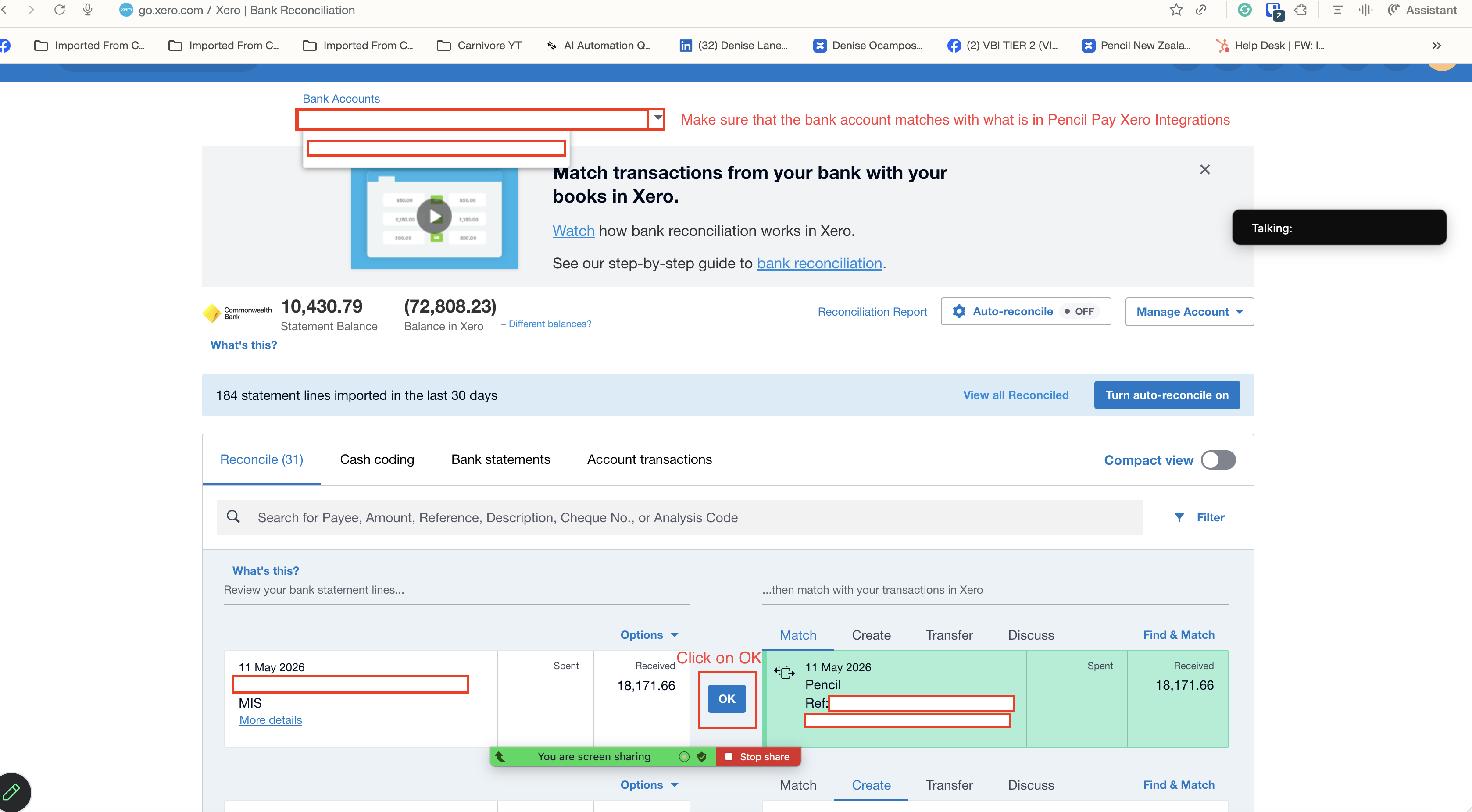
If searching by amount returns nothing:
- Try clearing the search and toggling Show spent items as well as received.
- Double-check the date/year filter — it's easy to be a page off and land in the wrong year/month.
- Try searching by the last few digits of the invoice/reference number instead of amount.
- If it's still not appearing, the disbursement may not have synced from Pencil into Xero at all:
- In Pencil Admin, go to Disbursements, find the transaction, and click Resync.
- Go back to Xero, refresh, and re-check Reconcile / Find & Match.
4. Checking whether a transaction was manually reconciled
To confirm whether a transaction has been manually (and incorrectly) reconciled:
- In Xero, go to Account Transactions.
- Click Search to bring up the filter fields, and search by amount or date.
- Look at the Status column — anything that shows as reconciled when you weren't expecting it to be is a candidate for being manually/incorrectly reconciled.
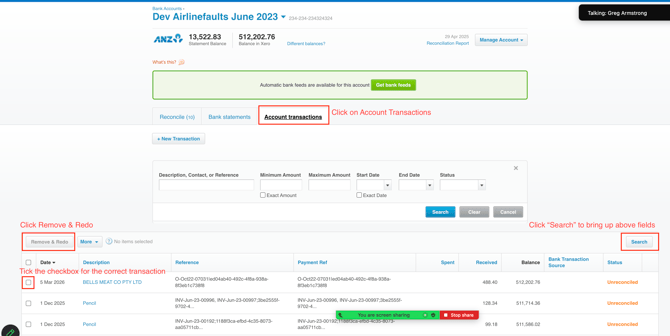
5. Undoing an incorrect reconciliation — two different paths, two different fixes
This is the part that's easy to get wrong, because the fix depends on where you undo it.
Path A — Undoing from Account Transactions ("Remove and Redo")
Use this when the entry was a journal-type entry pushed from Pencil (not a straightforward bank statement line).
- Go to Account Transactions.
- Click Search and filter by amount, date, or status to find the incorrectly reconciled item.
- Tick the checkbox for that specific transaction (not just any line) — see the screenshot above.
- Click Remove and Redo.
- The item now drops back into the Reconcile queue (you'll see the "to reconcile" count go up by one).
⚠️ Critical extra step: Removing and redoing from Account Transactions does not automatically re-link back to Pencil. After doing this, you'll also need to:
Step 6. Go to Pencil Admin → Disbursements → Disbursements List, find that same disbursement, and click Resync.
Step 7. Only after the resync will it correctly reappear and be ready to reconcile/match again in Xero.
Path B — Undoing from Bank Statements ("Restore")
Use this when you're undoing the reconciliation from the bank statement line itself.
- Go to Bank Statements.
- Tick the checkbox next to the reconciled transaction.
- Click Restore.
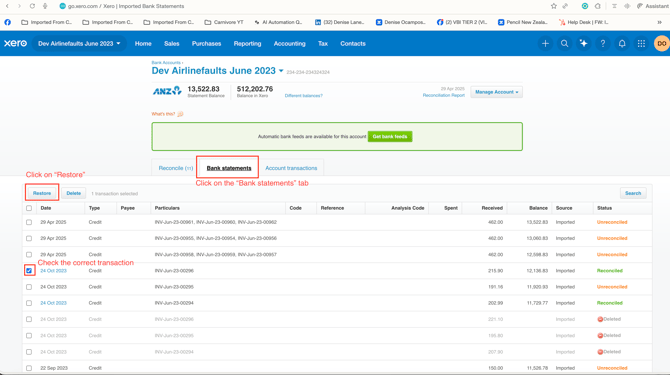
- Go back to Reconcile — the auto-reconciliation suggestion will reappear on its own.
✅ No separate Pencil resync needed in this path — restoring from Bank Statements keeps the link intact and Xero's auto-match picks it back up.
Summary rule of thumb
| Where you undo it | What happens | Extra step required? |
|---|---|---|
| Account Transactions → Remove and Redo | Breaks the link back to Pencil's disbursement | Yes — resync the disbursement in Pencil Admin |
| Bank Statements → Restore | Keeps the link intact | No — auto-reconcile reappears in Xero automatically |
6. Suggested troubleshooting flow
- Note down the specific transactions that aren't matching (exact amounts/dates/invoice numbers help a lot here).
- Check Account Transactions for those amounts/dates to see if anything shows an unexpected reconciled status.
- If something was manually reconciled incorrectly:
- Identify whether it needs to be undone via Account Transactions or Bank Statements (see table above).
- Apply the correct fix and the corresponding follow-up step.
- Confirm the corrected item now appears correctly in Reconcile, then follow the standard Match → Find → Reconcile flow above for any remaining unmatched items.
- If a disbursement seems to be missing entirely from Xero, check Pencil Admin → Disbursements and resync it.