![200707 pencil-logo-white-green-white_background-square.png]](https://support.pencilpay.com/hs-fs/hubfs/200707%20pencil-logo-white-green-white_background-square.png?width=150&height=53&name=200707%20pencil-logo-white-green-white_background-square.png)
Pencil <> Xero's bank reconciliation algorithm is self-learning: once it has learned how to match a transaction, it does so instantly and accurately going forward.
The problem: if a transaction gets manually reconciled (instead of letting Xero auto-match it, or it gets matched incorrectly), the algorithm gets "confused" and starts suggesting wrong matches for the transactions after it. This is the most common cause when things "used to work fine" and now nothing matches.
A tell-tale sign: if apart from a few transactions, the rest aren't reconciling correctly anymore — that usually means something was reconciled manually somewhere upstream.
How to check- In Xero, go to Account Transactions.
- Click Search to bring up the filter fields, and search by amount or date.
- Look at the Status column — anything that shows as reconciled when you weren't expecting it to be is a candidate for being manually/incorrectly reconciled.
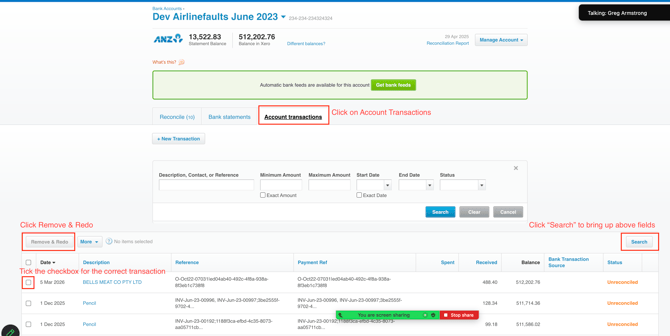
If you confirm a transaction was manually/incorrectly reconciled, head to the next article to undo it correctly.
How to Undo an Incorrect Reconciliation | Using the Remove and Redo Feature in Xero
- Xero Reconciliation Troubleshooting Guide Overview
- What do do when the Auto-Reconciliation has stopped working in Xero
- Transaction Not Appearing in Find & Match Search in Xero Reconciliation
Need Help?
If you have any questions or need further assistance, you can book a Zoom meeting with Pencil Support in the calendar below for personalized help. Our team is available to ensure your payment syncing and automation remain seamless.