![200707 pencil-logo-white-green-white_background-square.png]](https://support.pencilpay.com/hs-fs/hubfs/200707%20pencil-logo-white-green-white_background-square.png?width=150&height=53&name=200707%20pencil-logo-white-green-white_background-square.png)
Steps
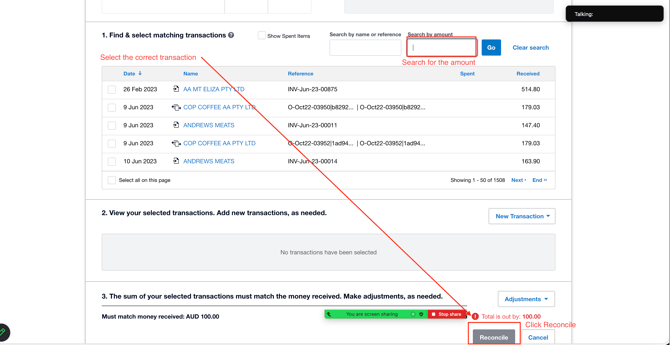
- Go to the Reconcile tab in Xero and find the unmatched line.
- Click Match (not Create — Create generates a brand-new transaction instead of linking to the existing one).
- Click Find & Match / the search option inside the match panel.

- Search by the amount (or part of the invoice/reference number if amount search doesn't surface it).
- Tick the checkbox next to the correct matching transaction.
- The grey Reconcile button at the bottom turns green — click it.
Related articlesTip: if you only see a checkbox and "OK" option but it's not turning green, double check you've actually clicked Find & Match first — it's easy to click Match, not see an obvious match, and stop instead of using the search/find step inside the match screen.
- Xero Reconciliation Troubleshooting Guide Overview
- Why Did My Transactions Stop Auto-Reconciling in Xero
- Transaction Not Appearing in Find & Match Search in Xero Reconciliation
- How to Undo an Incorrect Reconciliation | Using the Remove and Redo Feature in Xero
Need Help?
If you have any questions or need further assistance, you can book a Zoom meeting with Pencil Support in the calendar below for personalized help. Our team is available to ensure your payment syncing and automation remain seamless.